
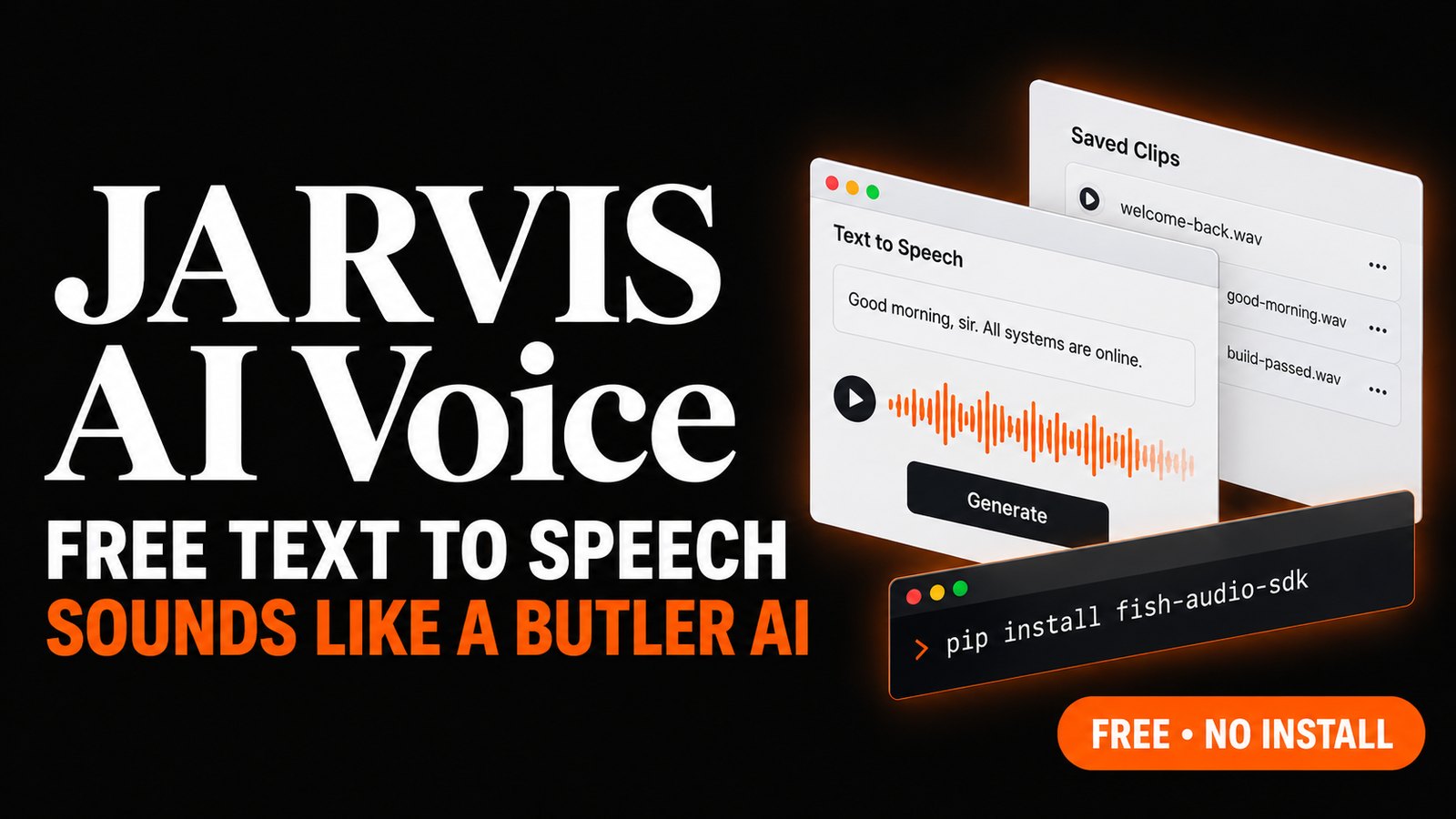
The quickest free way to get a JARVIS-style AI voice is a community voice model on Fish Audio. Paste a line into the model's page, press generate, and a calm, butler-like assistant reads it back in a few seconds, no install needed. If you want MP3 or WAV files you can keep, Fish Audio's free API model renders them from a short Python script. Home Assistant 2026.1 and later can speak through the same voice on your smart speakers.
What is a JARVIS AI voice, and is it the official one?
It is a text-to-speech voice tuned to sound like the composed, dry-witted AI butler from the Iron Man films, made by a hobbyist and not by Marvel. None of the JARVIS-style models we found on Fish Audio claim a license from Marvel Studios or from Paul Bettany, who voiced the character. Treat every one of them as a soundalike style, not the character's real voice.
RelatedWorktrunk Setup: Git Worktrees for Parallel AI Agents
It is also text to speech, not a voice changer. You type, it talks. It will not turn your own microphone into JARVIS live on a call; that takes a real-time voice changer, which is a different kind of product. The model this guide uses is tagged male, middle-aged, calm, clear and professional. It reads in an even, measured tone that suits short assistant lines better than long dramatic narration.
How do you make a JARVIS voice for free in your browser?
Open the voice's page on Fish Audio, type your line into the text box and press generate. For a one-off line that is the whole job, and it runs in any browser on Windows, Mac, Android or iPhone. Fish Audio gives free accounts a monthly allowance of generations, and the model page says paid plans add longer text, MP3 and WAV downloads, and commercial-use rights.
- Open the voice. Go to the JARVIS voice on Fish Audio. The five samples on the page show the range before you type anything.
- Create a free account if you want more than a quick test. No card is needed.
- Write for the ear. Short sentences work best for this style. A full stop before "sir" gives you the clipped, polite pause people expect: "The coffee is ready. Sir."
- Generate and listen. Each run comes out slightly different, so regenerate if a word lands wrong.
- Save the voice to your Fish Audio library so you can find it again without searching.
Can you download JARVIS voice lines as MP3 files for free?
Yes, through Fish Audio's API. New accounts start with no API credit, but the free model s2.1-pro-free works on a $0 balance and accepts a public voice ID. A short Python script can therefore render a whole folder of MP3 or WAV clips at no cost. Fish Audio's pricing page lists that model at $0.00. The paid s2-pro model costs $15 per million bytes of text, which Fish Audio puts at roughly 180,000 English words.
- Create an API key on the Fish Audio API keys page.
- Install the SDK (Python 3.9 or newer):
$ pip install fish-audio-sdk - Store the key in an environment variable. On Windows, run this once and then open a new terminal:
On macOS or Linux, add$ setx FISH_API_KEY "paste-your-key-here"export FISH_API_KEY="paste-your-key-here"to your shell profile. - Save the script below as
make_jarvis.pyand runpython make_jarvis.py. Your clips land in ajarvis-clipsfolder.
from pathlib import Path
from fishaudio import FishAudio
from fishaudio.utils import save

VOICE_ID = "c700b259c8554960b218a7cb275ee565"  # JARVIS-style voice on Fish Audio
LINES = {
    "welcome-back": "Welcome back, sir. All systems are online.",
    "good-morning": "Good morning. It is seven a.m., the sky is clear, and you have three meetings today.",
    "build-passed": "The build passed on the first try. I will try not to look surprised.",
}

client = FishAudio()  # reads FISH_API_KEY from the environment
out = Path("jarvis-clips")
out.mkdir(exist_ok=True)

for name, text in LINES.items():
    audio = client.tts.convert(
        text=text,
        reference_id=VOICE_ID,
        model="s2.1-pro-free",  # the free model; the SDK defaults to paid s2.1-pro
        format="wav",
    )
    save(audio, str(out / f"{name}.wav"))
    print("saved", out / f"{name}.wav")
Two things trip people up. If you leave out model="s2.1-pro-free", the SDK (version 1.4.0 when we checked) falls back to the paid s2.1-pro model, and a $0 account gets a 402 error. A 429 error means you hit the concurrency limit; wait a few seconds and run it again. The script writes WAV because the Windows trick below needs WAV. Change format="wav" to "mp3" for phones and Discord.
How do you add a JARVIS voice to Home Assistant?
Use the built-in Fish Audio integration, available since Home Assistant 2026.1, and paste the JARVIS model's ID in as a custom voice. Your Assist voice assistant can then answer in that voice, and any automation can speak through it with the tts.speak action. The integration runs on your API key and lists the paid s2-pro and s1 backends, so it is not free. At $15 per million bytes, though, a 300-character morning briefing costs under half a cent.
- In Home Assistant, go to Settings > Devices & services > Add Integration, pick Fish Audio and enter your API key.
- On the integration card, select Add TTS voice and choose to include public voices.
- In the Voice field, enter the custom voice ID
c700b259c8554960b218a7cb275ee565. - Set the AI voice model to
s2-pro, latency tonormalfor quality orbalancedfor speed, and a speech speed of about 0.9 to 1.0. Slightly slow suits the butler delivery. - Name it JARVIS. Then, under Settings > Voice assistants, pick it as the text-to-speech voice for your Assist pipeline.
A morning briefing automation looks like this. Swap in the TTS entity Home Assistant created for your voice, your speaker and your own temperature sensor:
alias: JARVIS morning briefing
triggers:
  - trigger: time
    at: "07:00:00"
actions:
  - action: tts.speak
    target:
      entity_id: tts.jarvis
    data:
      media_player_entity_id: media_player.bedroom_speaker
      message: >-
        Good morning, sir. It is {{ states('sensor.outdoor_temperature') }}
        degrees outside, and the house is secure.
Keep in mind that every spoken line is sent to Fish Audio's cloud to be rendered. For the handful of fixed phrases a smart home repeats, such as door chimes and "welcome home", pre-render them with the Python script and play the files locally with media_player.play_media.
Make Windows greet you with a JARVIS line at sign-in
Windows 11 has no setting to swap its startup sound for your own file. The dependable route is a shortcut in your Startup folder that plays a WAV when you sign in, and it needs no admin rights. Copy welcome-back.wav from the script above into your Music folder, then paste this into PowerShell:
PS> $wav = "$env:USERPROFILE\Music\welcome-back.wav"
PS> $lnk = Join-Path ([Environment]::GetFolderPath('Startup')) 'JARVIS greeting.lnk'
PS> $s = (New-Object -ComObject WScript.Shell).CreateShortcut($lnk)
PS> $s.TargetPath = 'powershell.exe'
PS> $s.Arguments = "-NoProfile -WindowStyle Hidden -Command (New-Object Media.SoundPlayer '$wav').PlaySync()"
PS> $s.WindowStyle = 7
PS> $s.Save()
Sign out and back in to hear it. To remove it, press Win+R, type shell:startup and delete "JARVIS greeting". The built-in player only handles WAV, which is why the script exports that format.
JARVIS clips for Discord soundboards and bots
Discord's soundboard wants short clips. Guides to it put the limits at 512 KB and about five seconds, and Discord flags anything longer in the upload preview. One line per clip, exported as MP3, fits comfortably: "Incoming message, sir." or "You have been muted. Wisely." Adding sounds to a server needs a role that can manage its expressions.
For a bot that talks back, you can call the API at runtime with the same reference_id. Your bot then pays per character on the paid models, or works within the free model's limits. Bots that repeat the same few lines are cheaper and faster with pre-rendered files.
RelatedArtCraft on Windows and Mac: Install the AI Image and Video IDE
Alarms and ringtones on Android and iPhone
On most Android phones, copy an MP3 into the Alarms folder on internal storage and it shows up in the Clock app's list of alarm sounds. Some Clock apps also let you pick any file directly. On iPhone, custom sounds have to go through GarageBand's ringtone export, and alarms can then use that ringtone. A wake-up line works best at five to ten seconds, with a beat of silence at the end before it loops.
Twenty JARVIS-style lines worth generating first
These are written for this guide, not lifted from the films, so you can use them freely. Each is short enough for a soundboard slot or a notification.
- Good morning, sir. All systems are online.
- Welcome back. I kept everything running while you were away.
- Your coffee is ready. I would not leave it long.
- Incoming call. Shall I put them through?
- You have three unread messages, and one of them seems urgent.
- The build passed on the first try. I will try not to look surprised.
- The build failed. I have taken the liberty of not saying I told you so.
- Battery at ten percent. Now would be a sensible time.
- Download complete.
- Power at full capacity. Impressive, if slightly alarming.
- The front door is locked, and the house is secure.
- Rain is expected this afternoon. An umbrella would be wise.
- Running diagnostics. This will only take a moment.
- Sir, I would strongly advise against that.
- Your meeting starts in five minutes.
- Stream is live. Do try to look pleased.
- New follower. Shall I prepare a welcome?
- It is past midnight. Perhaps the code can wait until morning.
- Focus mode enabled. I will hold all calls.
- Shutting down. Goodnight, sir.
Can Alexa, Siri or Google Assistant sound like JARVIS?
Not natively. Alexa, Siri and Google Assistant only offer the voices their makers ship, and none of them accept a third-party voice model. The workable route is Home Assistant. Run your voice assistant through Assist with the Fish Audio voice, or have automations play JARVIS clips on a Google Nest or any other Cast speaker that Home Assistant controls.
Which JARVIS voice on Fish Audio should you pick?
A search for "Jarvis" on Fish Audio returns dozens of community models, tagged anywhere from young and smooth to middle-aged and theatrical. Paste the same test line into three or four of them and judge them side by side. Listen for consistency across regenerations, not only the best take. A model's use count and likes tell you which ones other people stuck with.
This guide uses the model linked above. It is calm and even, which suits short assistant lines. If you want a younger, more robotic or more dramatic delivery, another model may suit you better, and every step in this guide still applies once you swap its ID into reference_id.
Can you use a JARVIS voice in YouTube videos or an app you sell?
There are two separate questions. The first is Fish Audio's terms. Its model pages say free accounts are for personal projects and commercial-use rights come with a paid plan, and the API pricing page does not say whether the free model allows commercial use. Check the current terms before you monetize anything.
The second is the character. JARVIS, Iron Man and Marvel are trademarks, and none of these voices are the actor's. A faceless YouTube channel narrated in a calm assistant voice is a different thing from a product that calls itself the official JARVIS, uses Marvel art, or tells buyers it is Paul Bettany. Keep the name generic in anything you sell, and do not imply an endorsement. This is general information, not legal advice.
- VoiceJARVIS-style voice model on Fish Audio tags, samples and use count
- DocsFish Audio API quick start TTS endpoint, API keys and the free s2.1-pro-free model
- PricingFish Audio pricing and rate limits per-byte model prices and concurrency tiers
- SDKFish Audio Python SDK install, reference_id and output formats
- IntegrationHome Assistant Fish Audio integration custom voice IDs, backends and the tts.speak action